

Need information on parking, IDs, shuttle services and more?
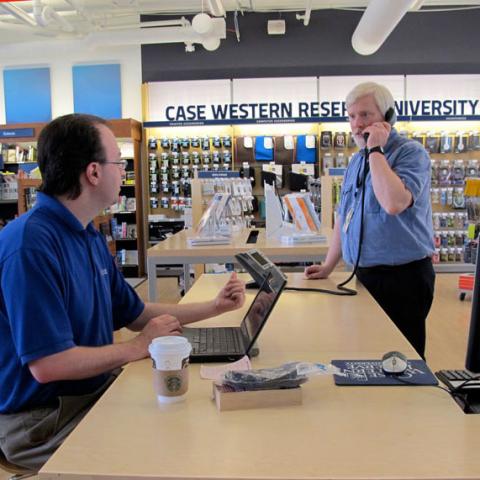
Find textbooks, branded apparel and graduation gowns at Barnes & Noble, CWRU's official bookstore.

Bon Appetit offers award-winning dining programs for residence halls and cafeterias around campus.
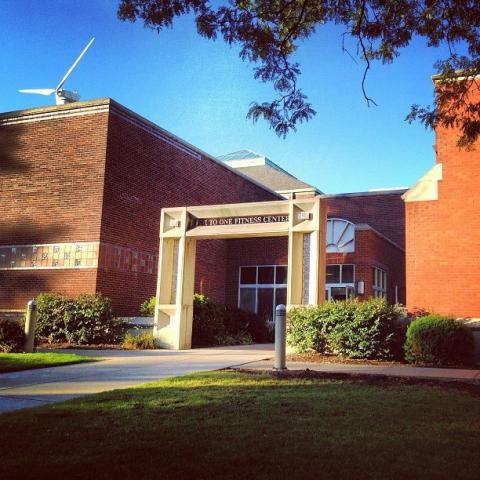
One to One Fitness is a premier Cleveland fitness center serving the university and area community.

Department printer leases in the Cost per Copy program are provided by Lake Business Products.
FedEx Office is the official printer for Case Western Reserve.
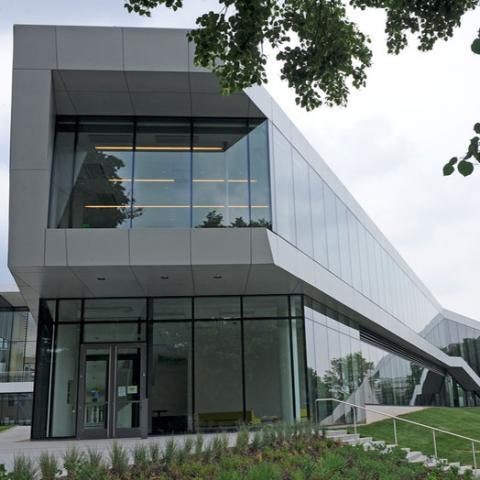
The state-of-the-art campus venues are home to departments, event spaces, performances, and dining.
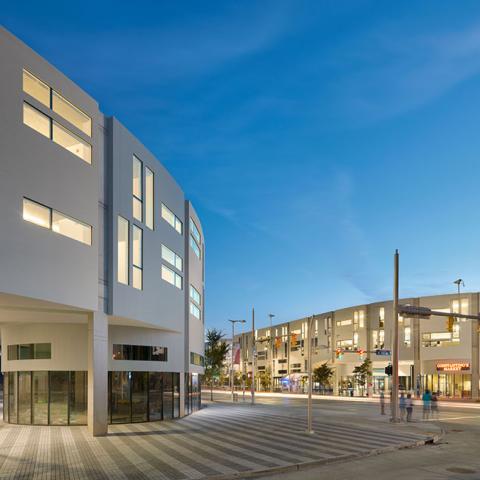
The Office of Real Estate manages our residential and commercial properties.

Procurement Services is the strategic buyer of goods and services.

Responsible for all things travel-related, this department has answers for faculty, staff and students.

The Office of University Housing offers residential living programs to meet the diverse needs of Case Western Reserve University students.